Quick start
From an empty window to a playing, published track in about five minutes.
You need three things: a Songcode account, which takes an invite to create while Songcode is in early access, a current desktop browser, and an API key from Anthropic or OpenAI. The key is how the track gets written: Songcode sends your prompt to the model you pick, on your account, and the model sends back code.
#1. Open the app
Go to studio.songco.de and sign in. The first time, the window is empty: a composer on the left, an empty stage on the right, and a note under the generate button that says a key is missing.
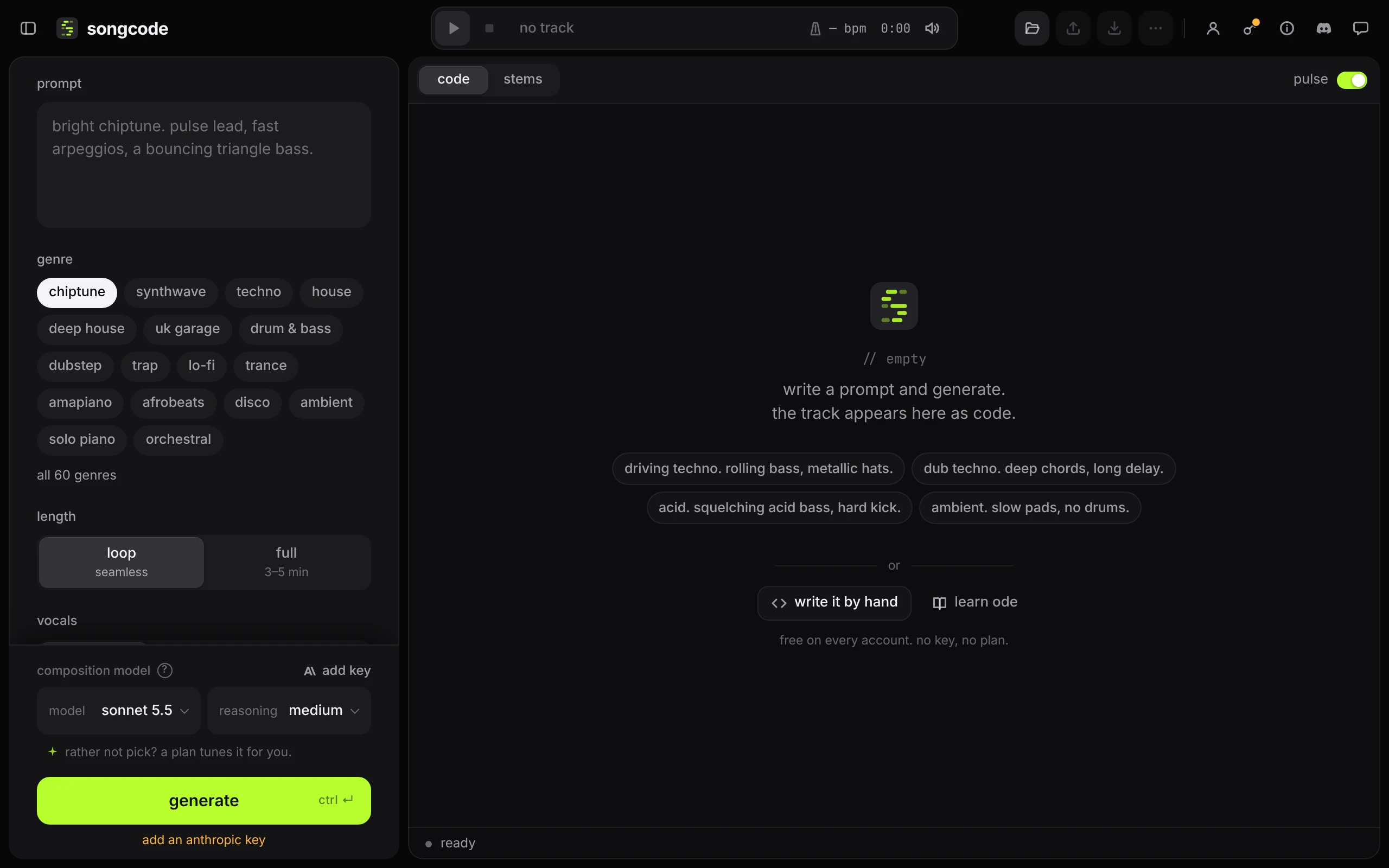
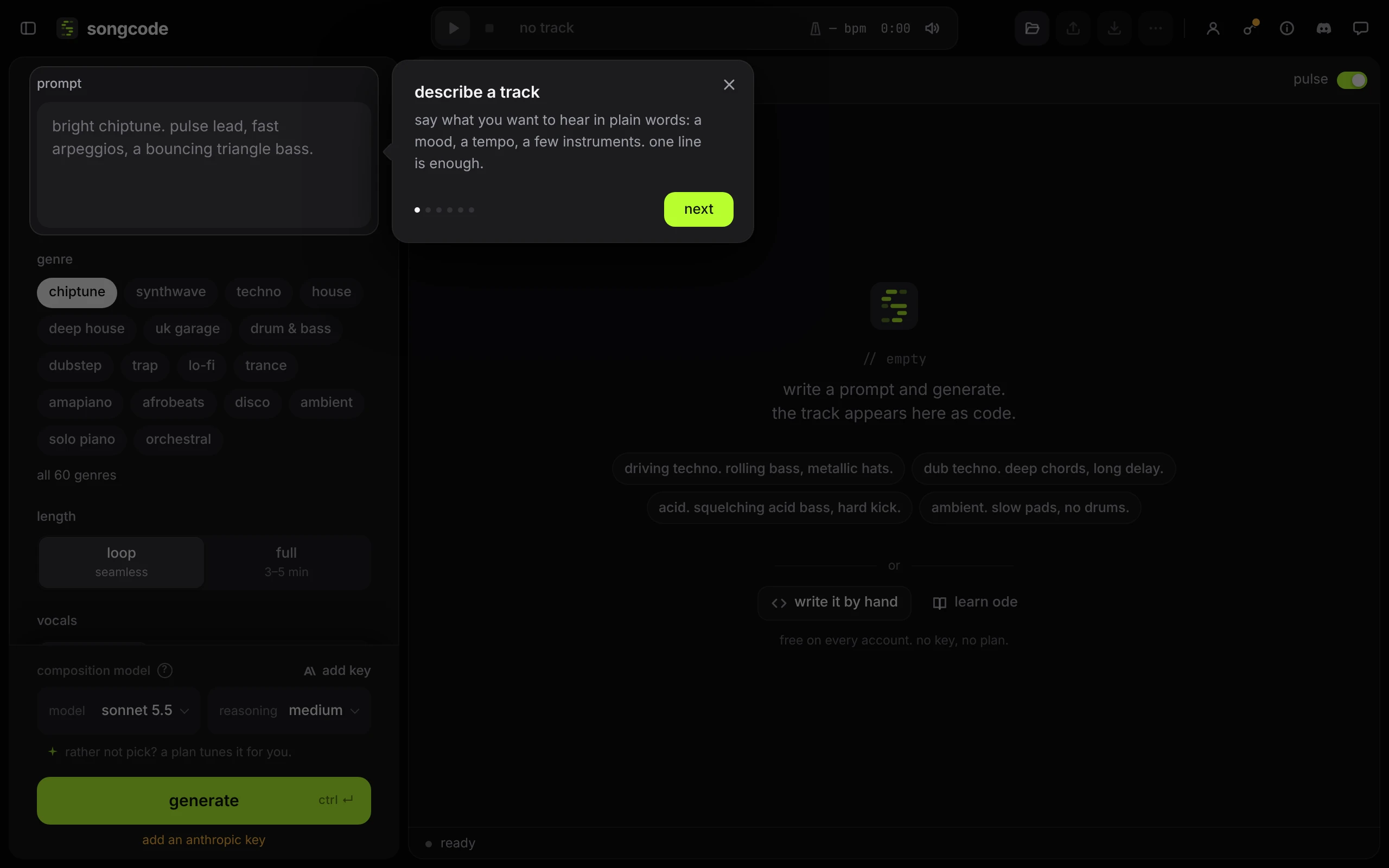
On that first visit Songcode also shows you around. A card lights one part of the window at a time and says what it is for, in 6 steps. Press next to follow it, or the × to close it and start on your own. It covers the same ground as this page in half a minute. The first-visit tour has the details, and how to see it again.
#2. Add your key
Click the key icon at the top right, or just press generate: with no key saved, the key sheet opens by itself.
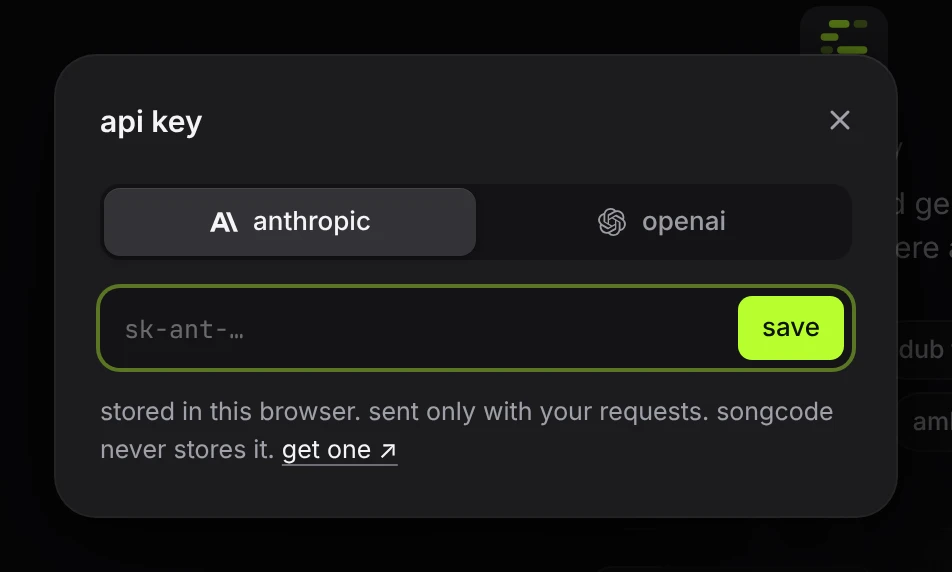
Pick anthropic or openai, paste the key and press save. The key is stored in this browser only. API keys and models covers where to get one and exactly where it goes.
#3. Describe the track
Type what you want into prompt. Plain words work: a mood, a tempo, instruments, a place. Then pick a genre. The genre sets the tempo range, the drum kit and the conventions the model follows, so the prompt can stay short.
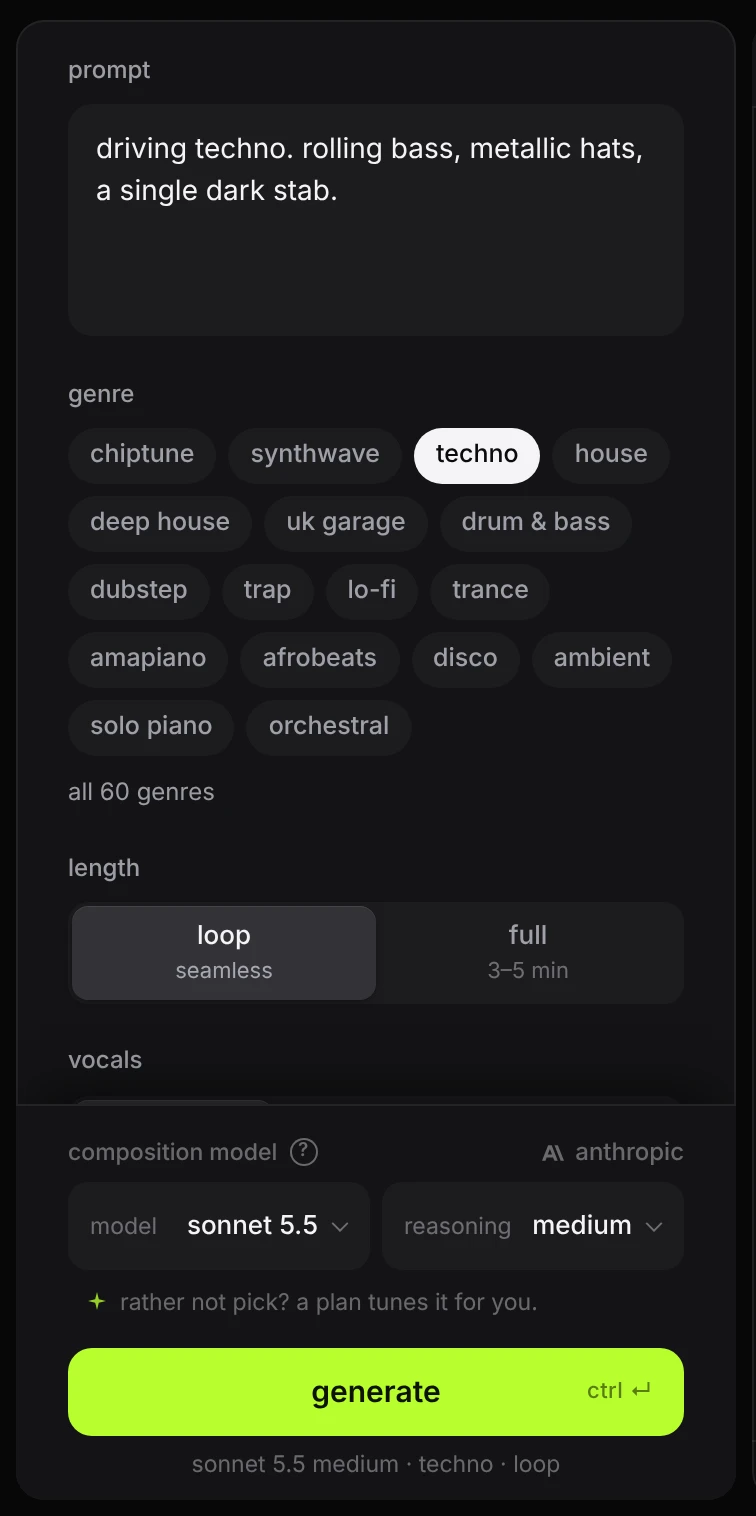
Leave length on loop for now. A loop is a few bars that repeat without a seam, and it is written in seconds. Leave composition quality as it is: sonnet at medium reasoning on an Anthropic key, balanced on a plan.
#4. Generate
Press generate or ⌘↵. The code appears on the right as the model writes it, with grey bars standing in for the lines still to come.
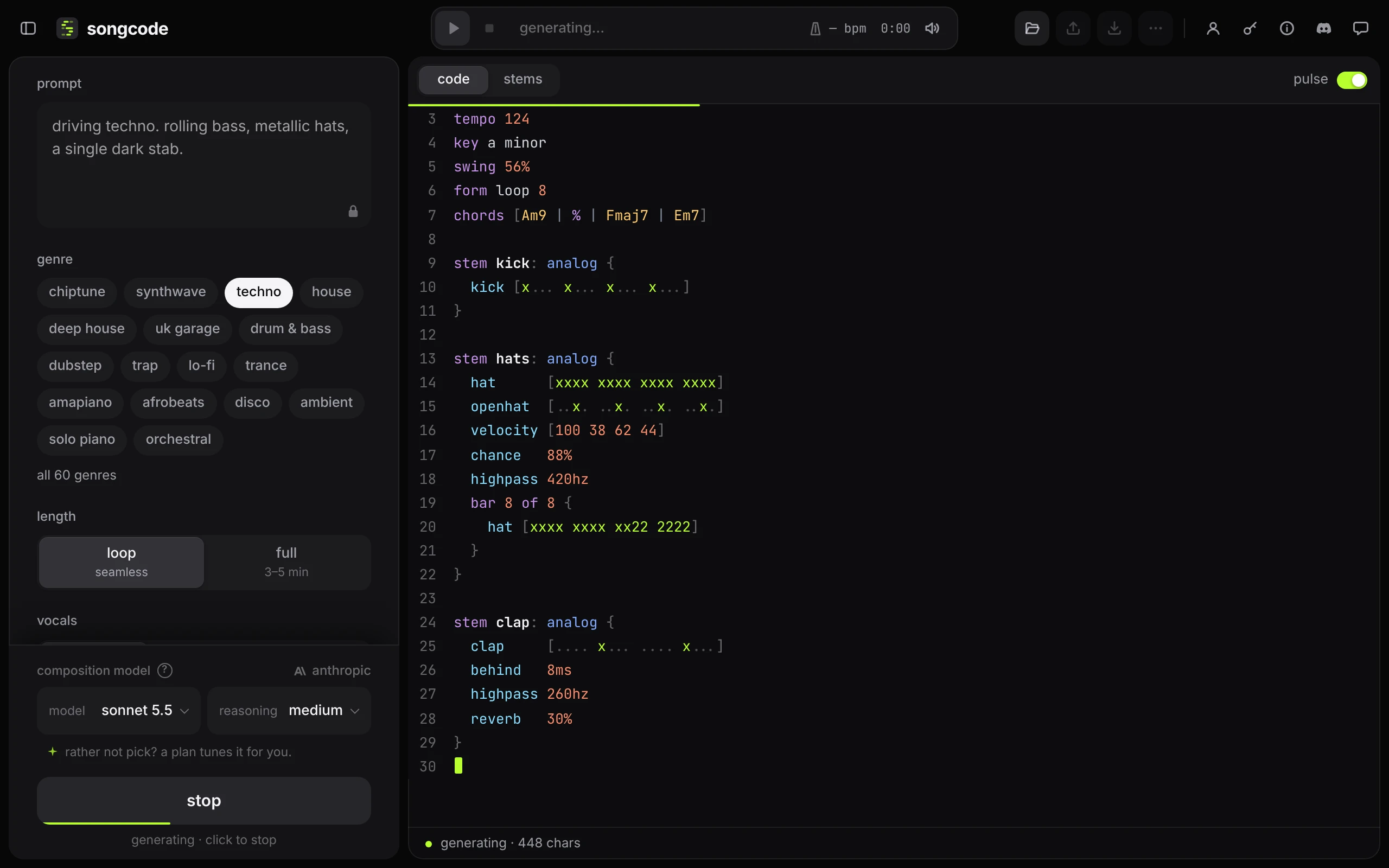
When the model finishes, Songcode runs the code once without sound to check that every stem plays. If something is broken it asks the model for one fix. The status line at the bottom then reads done, with the model and the number of stems checked.
#5. Play it
Press the green play button or space. The first play loads the Songcode Audio Engine and the sounds, which takes a few seconds.
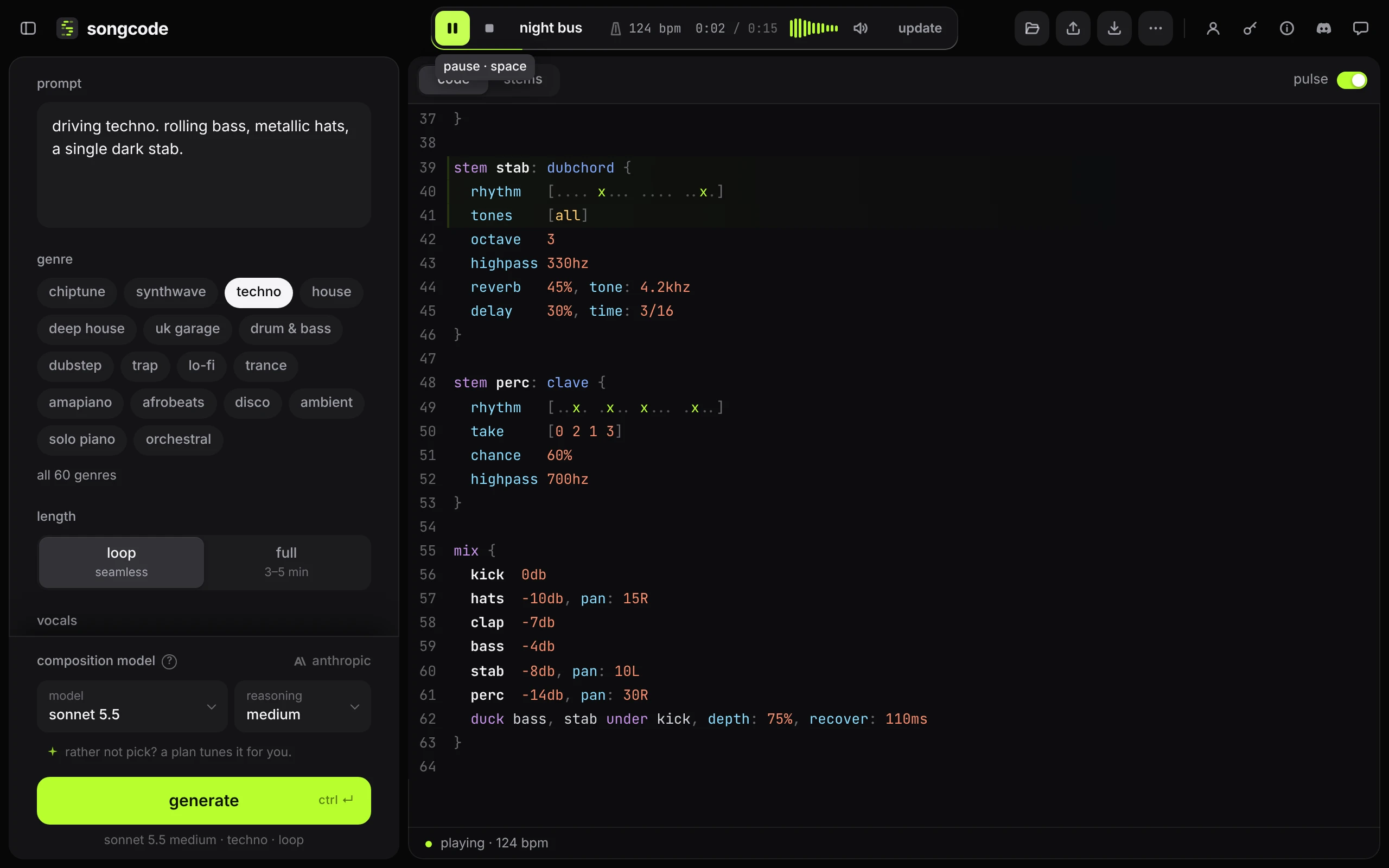
space pauses and resumes. The square button next to play stops and goes back to the start.
#6. Change something
The code on the right is the track. Find the block that starts with stem kick: and change a mark in its row, for example a . to an x to add a hit. The update button in the transport lights up. Press it and the change takes over without stopping the music.
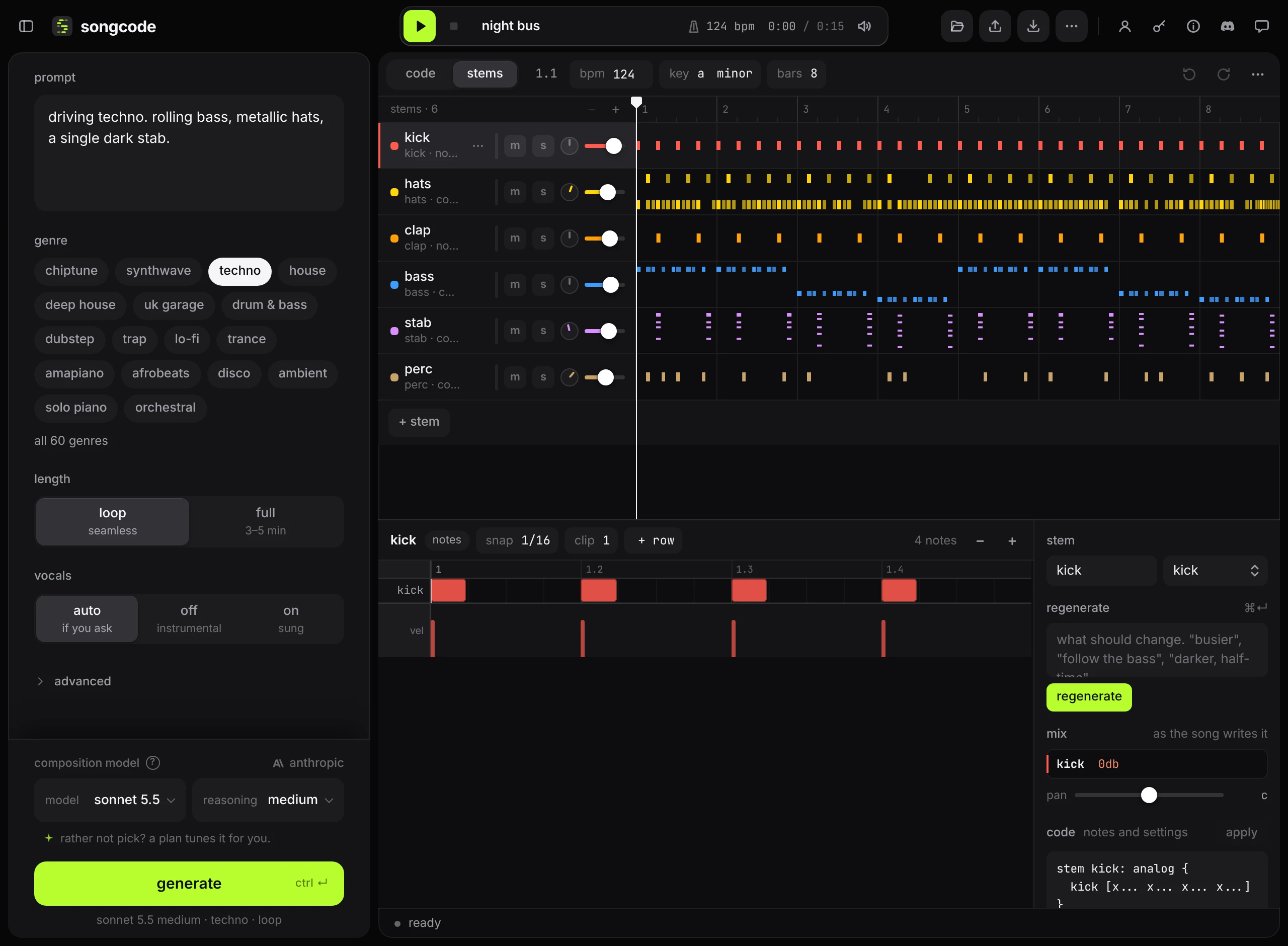
Prefer handles to code? Click stems above the editor. Every stem in the code becomes a track with a mute button, a solo button, a pan knob and a level slider.
#7. Keep it
The track was kept as a draft the moment it was written, and every edit since is kept too; it is in the library under drafts. Press publish to give it a short link that you can send to anyone. download gives you the source, a WAV or an MP3, rendered in your browser.

#Where to go next
- Compose a track explains prompts, genres, loops against full tracks, and what happens while a track is written.
- Advanced controls lists the 30 settings that steer the model.
- The stems view and edit a stem cover the mixer, the timeline and the note editor.
- The song format explains how to read the code.