Edit a stem
The lower half of the stems view. Read a stem’s code, turn it into notes, draw and move notes in the piano roll or drum grid, set velocities, and regenerate or rewrite one stem in the inspector.
Click a track in the stems view and the lower half of the stage shows that stem: tools along the top, a note grid, a velocity lane, and the inspector on the right. Drag the border above the tools to give the editor more or less room.
#Code and notes
A stem is written in one of two ways, and the badge next to its name says which.
code is how the model writes: short rows such as a grid of kick hits, or a rhythm whose pitches follow the chords. Rows are short and musical, and blocks can change them by section. The grid shows what the rows play, but the notes cannot be dragged, because they come from the rows.
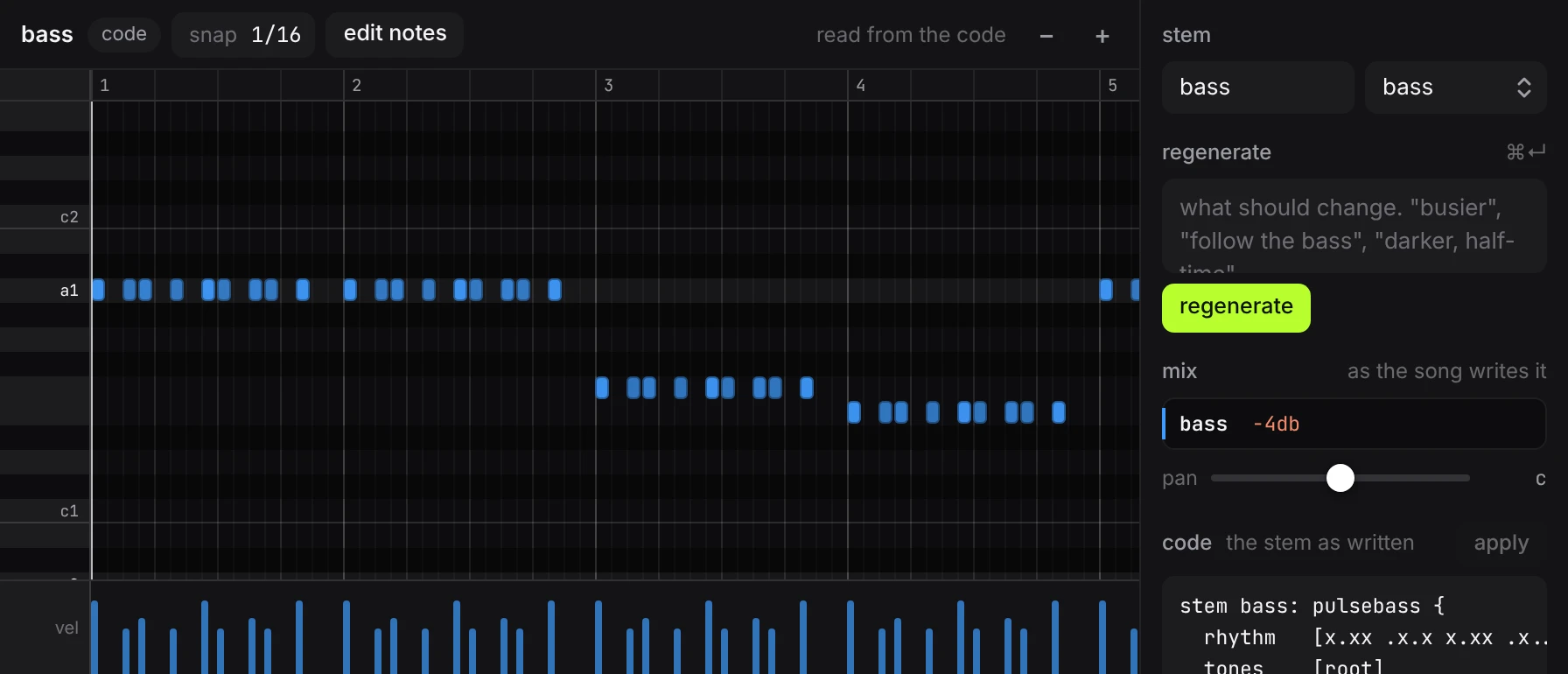
notes is a plain list: this note, at this time, this long, this hard. Notes can be moved, drawn, deleted and resized by hand.
edit notes turns the rows into notes. So does convert to notes in the stem’s menu, and convert all to notes in the song menu does it for every stem. The stem sounds the same afterwards: the notes are what the rows were playing, and the sound and effects stay as they were.
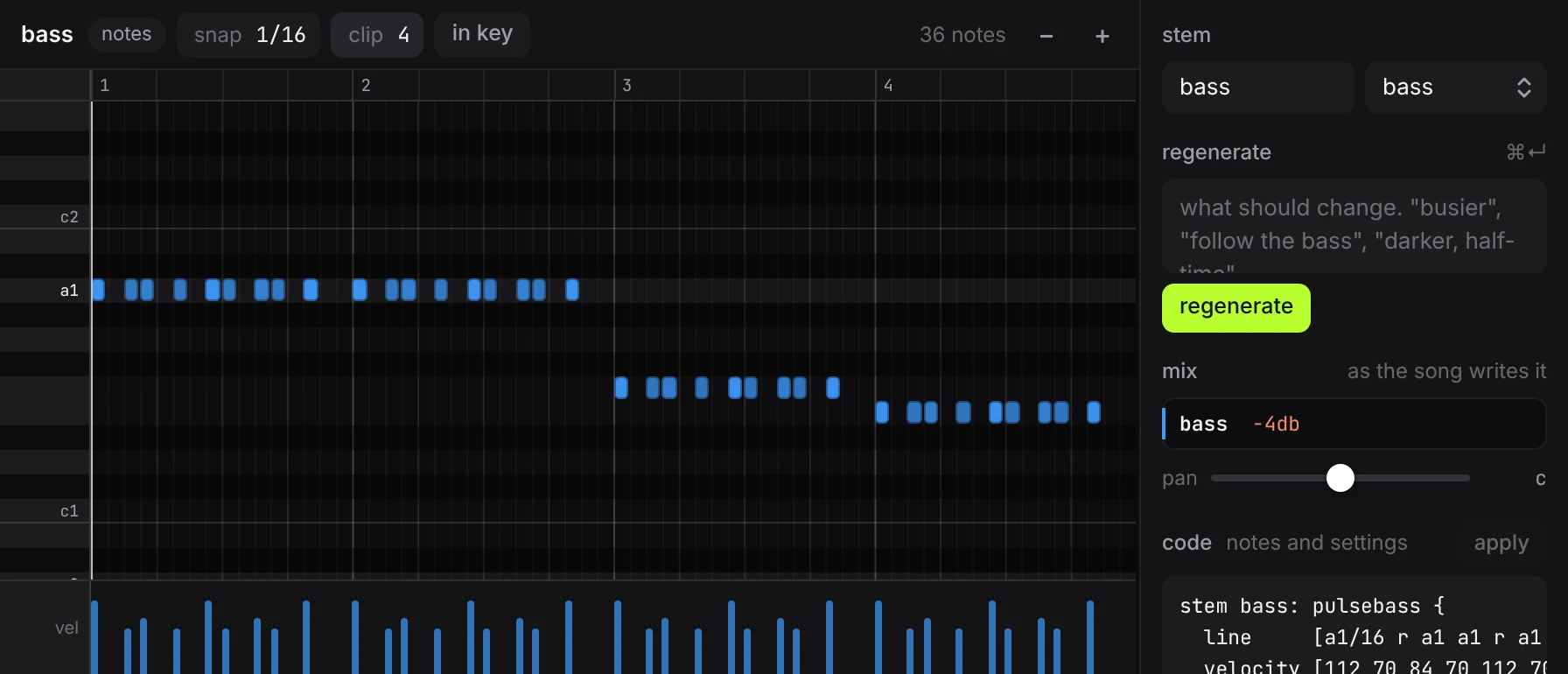
Converting is one-way by hand, since a list of notes cannot be folded back into rows, but ⌘Z undoes it. Anything in the stem that varied by chance is pinned to what it played on the pass that was captured, and the message that confirms the conversion names what was pinned.
You can also skip the grid and edit a stem as text in the inspector.
#The tools

- The name and the badge.
codeornotes. - snap. The grid that notes land on when drawn or moved: 1/4, 1/8, 1/16, 1/32, 1/8t, 1/16t, off. A
tmeans triplets. off places notes freely. - clip. The length of this stem’s phrase in bars. The clip repeats across the song, so a 2 bar clip in an 8 bar loop plays four times. Notes only.
- in key. When lit, notes you draw or move stay on the notes of the song’s key. Pitched stems only, and only when the song has a key.
- + row. Adds a row for another drum sound. Drum stems only.
- The note count, and − and + to zoom the grid.
#The piano roll
Pitched stems (bass, chords, leads, pads) get a piano roll: pitch runs up the left edge, time runs left to right, and each bar is numbered along the top.
- Draw a note: double-click an empty spot.
- Remove a note: double-click it, or select it and press delete.
- Move: drag a note. Up and down changes its pitch, left and right its time. A note sounds as you move it.
- Copy: hold alt and drag.
- Change the length: drag a note’s right edge.
- Move around: drag an empty part of the grid to slide the view left, right, up or down. A click on empty space selects none.
- Select several: hold shift and drag a box around them on an empty part of the grid, or shift-click to add notes one at a time. ⌘A selects all, esc selects none.
Two notes cannot start at the same moment on the same row. Move or copy notes onto others and the ones in your hand replace them. The status line says so: replaced the note underneath. undo brings it back., or replaced 3 notes underneath. undo brings them back. with the number replaced.
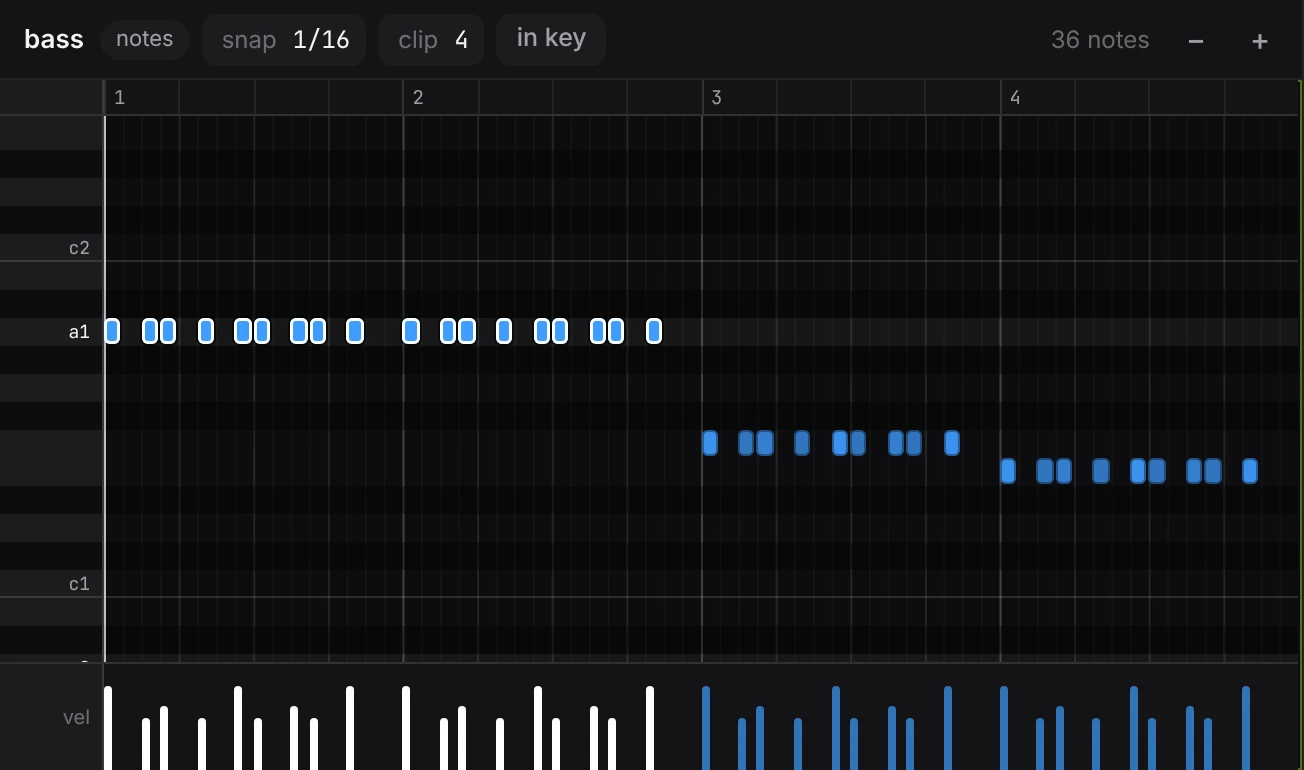
With notes selected, the keyboard works on all of them:
| key | what it does |
|---|---|
| ↑ ↓ | up or down one semitone; with shift, one octave |
| ← → | earlier or later by one snap step; with shift, one beat |
| ⌘D | repeats the selection right after itself |
| Q | quantizes: pulls starts and lengths onto the snap grid |
| delete | removes the selection |
Every edit is heard on the next pass if the track is playing, and every edit can be undone.
#Sung words
In a stem that sings, each note shows the word sung on it, just under the note. A word sung over several notes shows once, on its first. Click a word to change it, then press ↵; esc leaves it as it was. The word changes in the stem’s lyrics block, so the code view shows the new word too, and a word changed in the code shows here. Clear a word to take it out of the line. Write wa-lk to split a word over two notes, as in the lyrics block.
#The drum grid
Drum stems (kick, snare, clap, hats, perc) get a grid with one row per drum sound. A hit has no length, so there is nothing to resize; everything else works as in the piano roll.
A drum that the code tunes, such as a cowbell with a notes row, is still a drum. It opens in the drum grid, and the tuning stays in its code.
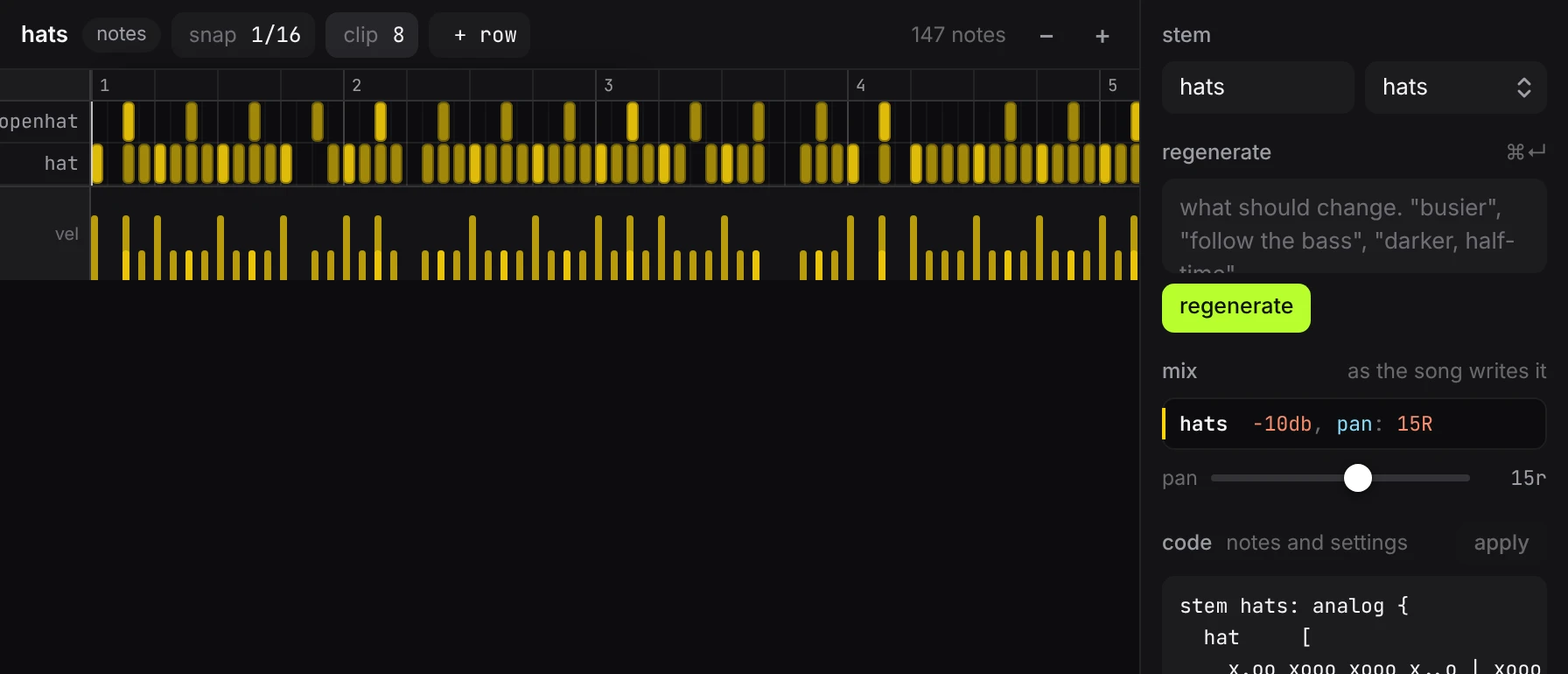
+ row adds a row for a sound the stem does not use yet, so one stem can carry a whole kit. The rows are the drums of a kit: kick snare clap hat openhat rim cowbell lowtom midtom hightom crash ride shaker tambourine. They are described under sounds.
#Velocity
The lane under the grid has one bar per note. Its height is how hard the note is played. Drag a bar up or down to change it. With several notes selected, their bars are highlighted so you can find them.
Velocity is the quickest way to make a part feel played: lower every second hat, lean on the first note of the bar.
#The playhead in the editor
The editor has its own ruler, numbered in the clip’s bars. Click or drag it to move the playhead within the pass of the clip that is playing. When the clip is wider than the editor, the grid turns the page with the playhead while the track plays.
#The inspector
The panel on the right acts on the selected stem as a whole.
#Name and role
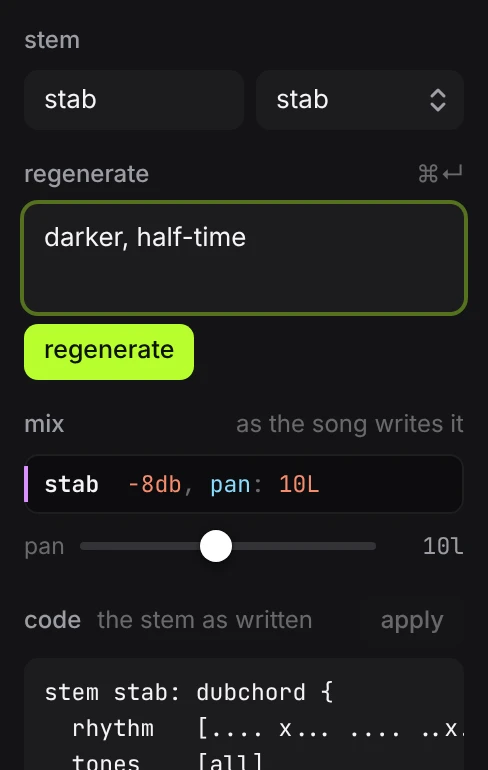
The first field renames the stem. Names are short, lower case, and unique within the track; the new name is used in the code. The menu next to it changes the stem’s role, which sets its colour and whether it gets a piano roll or a drum grid.
#Regenerate a stem
Type what should change into regenerate (“busier”, “follow the bass”, “darker, half-time”) and press the button or ⌘↵. The model rewrites this one stem and nothing else. It is given the whole track, the tempo and the key, so the new part fits what is already there.
Leave the box empty to ask for a fresh take with no direction.
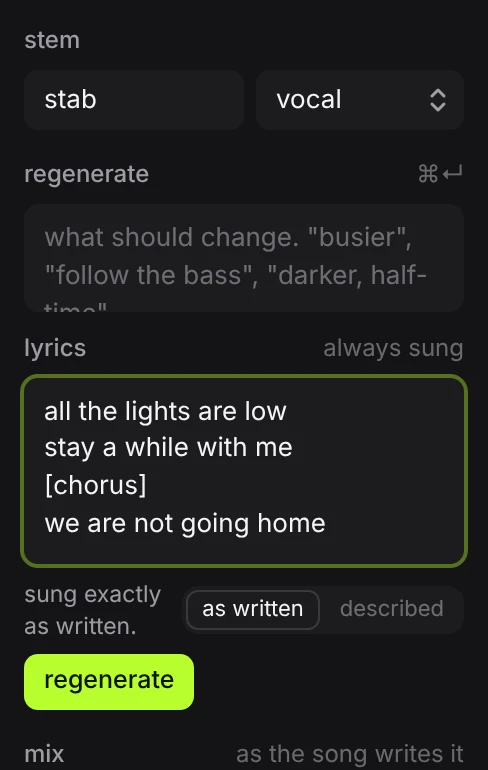
A stem whose role is vocal always sings words. Its inspector, and add a stem with vocal picked, open a lyrics box under the direction. Like the lyrics in the composer, it takes the lines to sing or a description of the words, and the line under it says which it reads; as written and described set it yourself. Leave it empty and the vocal gets new words that suit the track, on the same subject as the words it had. A vocal that comes back without words is sent back once for them.
Regenerating uses your key and the model selected in the composer. If the new stem does not run, Songcode asks once for a fix, as it does for a whole track. Don’t like the result? ⌘Z brings the old stem back.
#Mix
mix shows every row of the track’s mix table that names this stem, as the code writes it: its own row first, then its row in each block that changes it for part of the song. A bar at the left marks the rows in force at the playhead, and the row a fader or knob is writing lights up while you hold it.
The pan slider under the rows places the stem between the left and right speakers. Double-click it to return to the centre. It is the same control as the knob on the track, and like level and mute it is written into the mix table.
#Code
code holds the stem’s block, from stem name: sound { to its closing }. Edit it and press apply, above the box on the right, or ⌘↵. This is the way to change a stem without converting it: swap a sound, change a filter, rewrite a row.
The label next to code says what the box holds: the stem as written, or notes and settings for a stem in notes, where a line of notes is followed by the stem’s settings.
If the code cannot be read, the reason shows in red under the box, and that stem is silent until the code is fixed. ⌘Z goes back to the version before.
#Roles
| role | editor | an empty one starts as |
|---|---|---|
| kick | drum grid | club |
| snare | drum grid | club |
| clap | drum grid | club |
| hats | drum grid | club |
| perc | drum grid | club |
| bass | piano roll | pulsebass |
| sub | piano roll | subbass |
| chords | piano roll | epiano |
| stab | piano roll | stab |
| lead | piano roll | sawlead |
| arp | piano roll | synthpluck |
| pad | piano roll | warmpad |
| vocal | piano roll | alto |
| texture | drum grid | vinyl |
| fx | drum grid | white |
The role is a label for you and a brief for the model. It does not limit what the stem can play: any stem can hold any code.