Compose a track
The prompt, the genre, loop or full, vocals and your own lyrics, the model, and what happens between pressing generate and hearing the result.
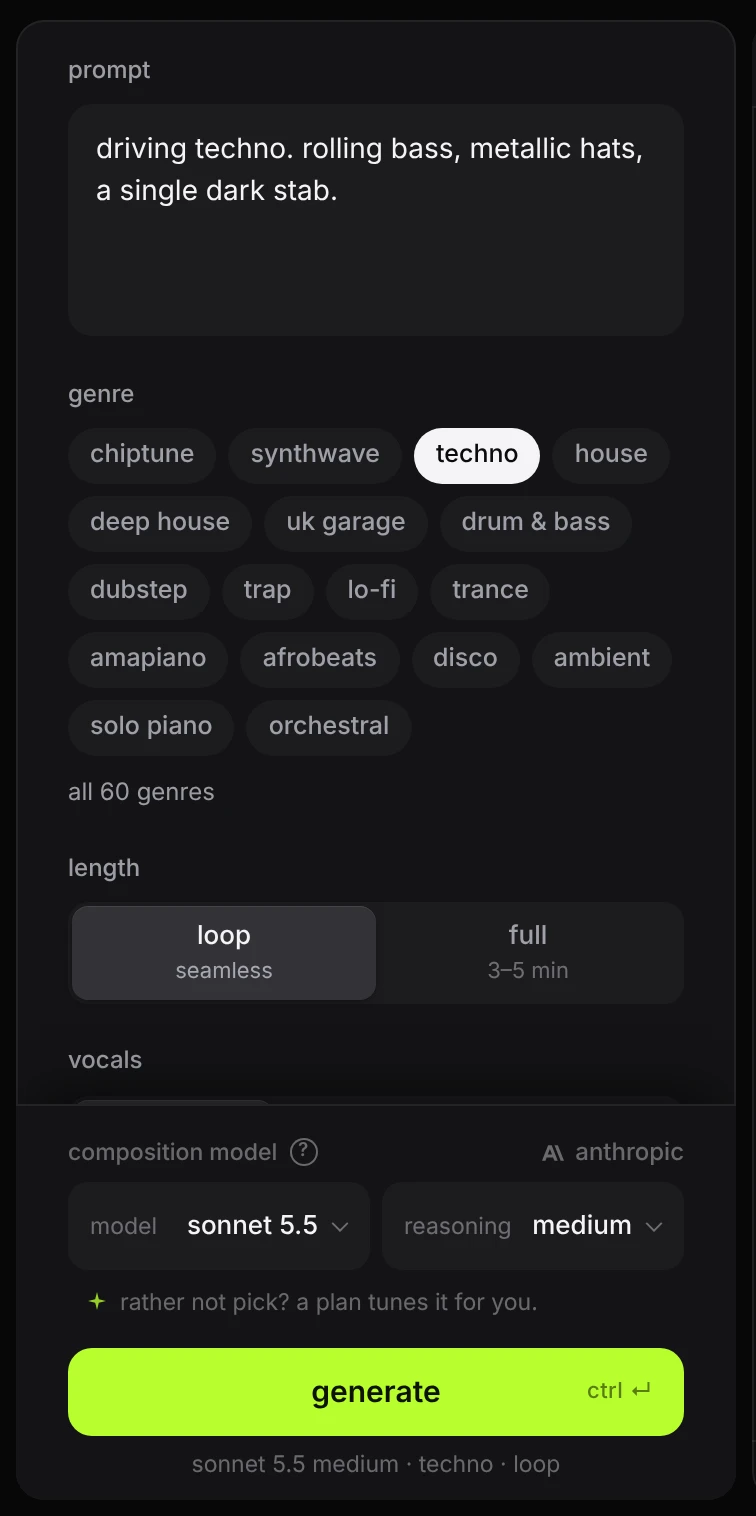
The composer is the panel with the prompt in it. Five choices go to the model with every request: what you wrote, the genre, the length, whether it is sung and the model. The advanced controls add up to 30 more when you want them.
#The prompt
Write what the track should be. Up to 2,000 characters fit; a counter appears near the limit.
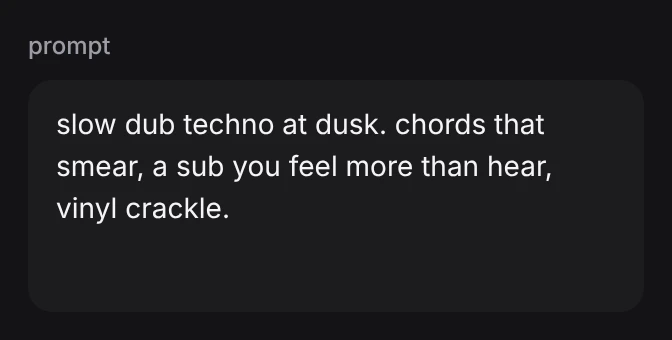
Prompts that work well say things a producer would say to another producer:
- Mood and place. “cold warehouse at 4am”, “sunny, lazy, a little drunk”.
- Instruments and their jobs. “rolling bass, metallic hats, one dark stab”, “no drums, slow pads”.
- Movement. “the filter opens over the whole loop”, “drops to just the kick and sub halfway”.
- Constraints. “128 bpm”, “in D minor”, “no more than six parts”.
- A vocal, if you want one. “a sung hook about driving at night”, “a robot voice repeating two words”. To be sure of a vocal, or sure of none, use the vocals switch.
You do not need to name the genre again or ask for good sound; the genre and Songcode’s own instructions cover both. Naming an artist steers less than describing the sound does. The model writes notes and picks sounds from Songcode’s catalog, so describing what you want to hear gives it something to act on.
The prompt can be empty. The model then writes a track from the genre alone.
#As written or tuned
On a plan, a switch above the prompt picks how Songcode reads it. Tuned, the default, turns a short prompt into a full brief before the song is written; as written sends your words as they are. Tuned prompts covers the switch, what you see when you generate and how a saved song keeps both versions.
#Changing the prompt of a song
While a song is being written, its prompt is locked. Once a song is on screen, clicking into the prompt opens a small card over it first, because a new prompt writes the whole song again. Close it and nothing changes. Pick edit stems to change one part in its stem’s settings, new track to start a new song from the words in the box (the current one stays in your library), or rewrite song to edit the prompt and generate over this one.
#Example prompts
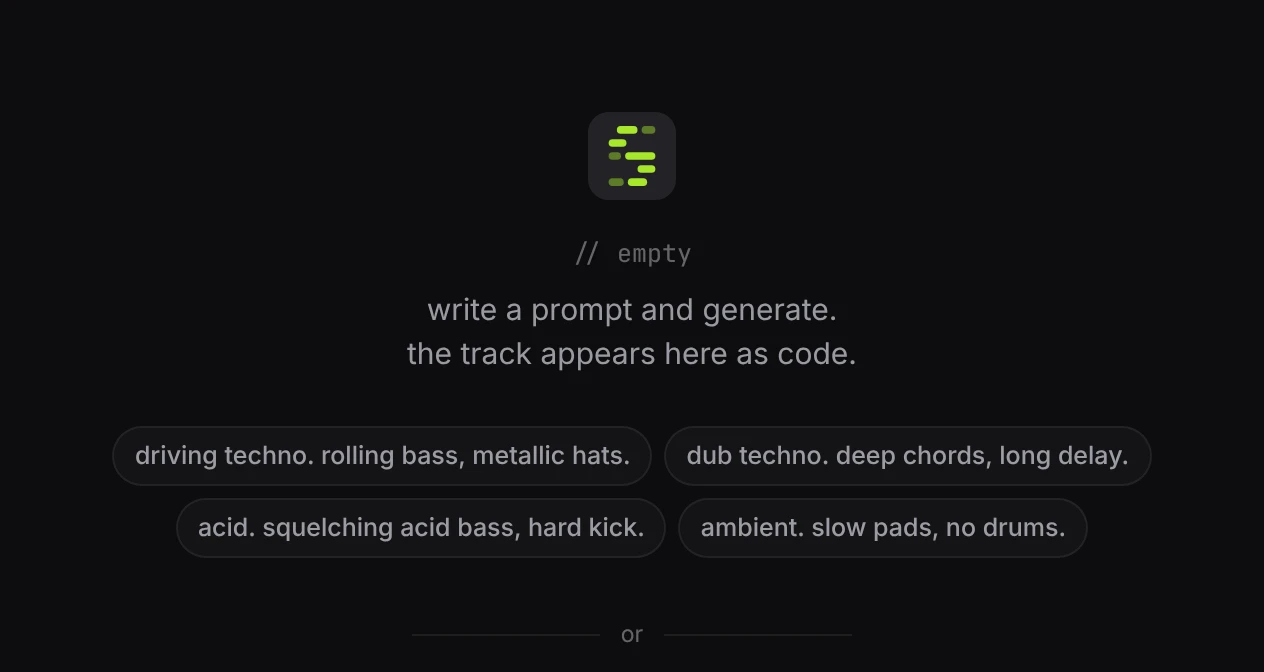
With nothing loaded, the stage offers four prompts. Clicking one fills the prompt and picks its genre. Nothing is generated until you press the button.
#The genre
The genre tells the model the conventions of a style: the tempo range, the drum kit, where the kick goes, what the bass does. It is the single biggest lever on the result, and it lets the prompt stay short.
17 genres show as chips: chiptune, synthwave, techno, house, deep house, uk garage, drum & bass, dubstep, trap, lo-fi, trance, amapiano, afrobeats, disco, ambient, solo piano, orchestral.
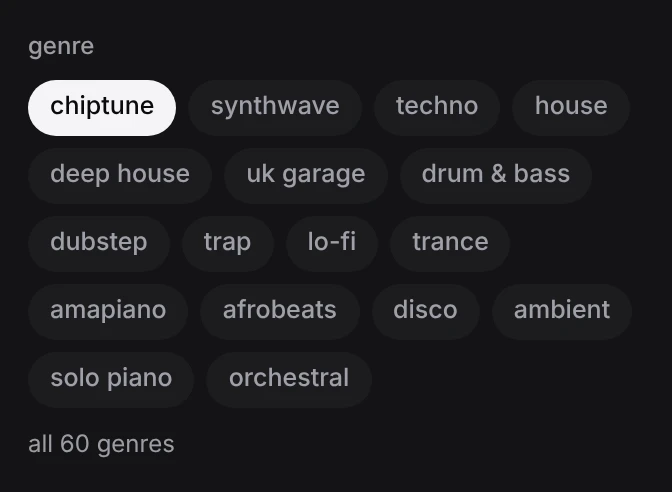
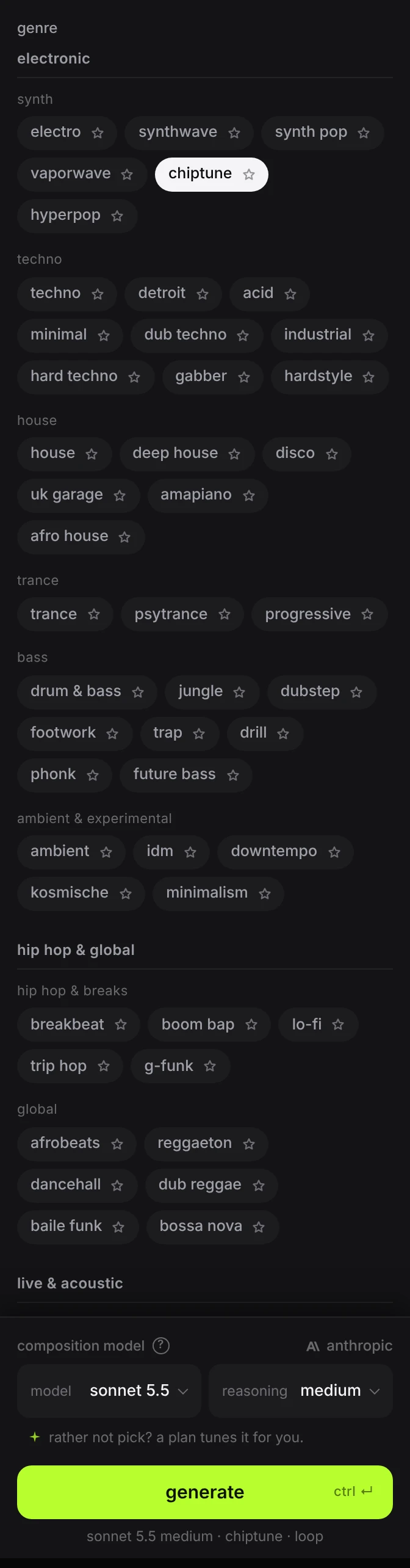
all 60 genres opens the full list, grouped into 11 families under three headings: electronic, hip hop & global, and live & acoustic. fewer closes it again. A genre picked from the full list stays visible after you close it.
#Favorite genres
In the full list every genre has a star. Click it and the genre becomes a favorite: it joins a favorites row at the top of the full list, and once the list is closed it comes first, ahead of the 17 genres that always show.
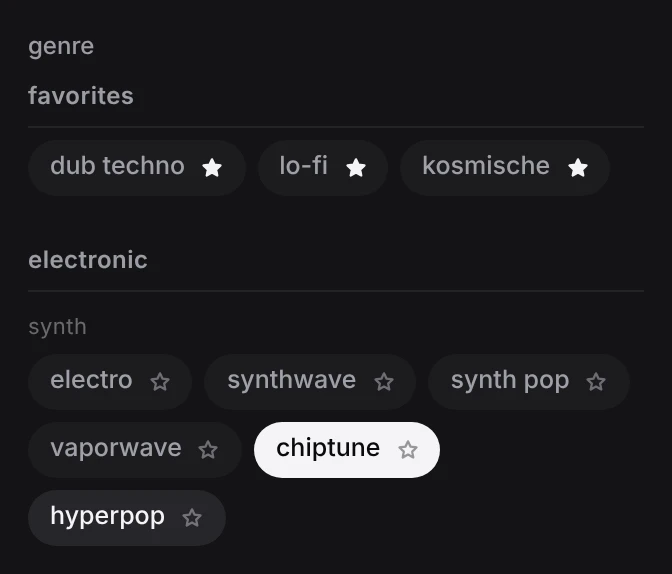
Favorites stay in the order you starred them. Click a filled star, in either list, to remove one; the genre goes back to its usual place. Starring a genre does not select it.
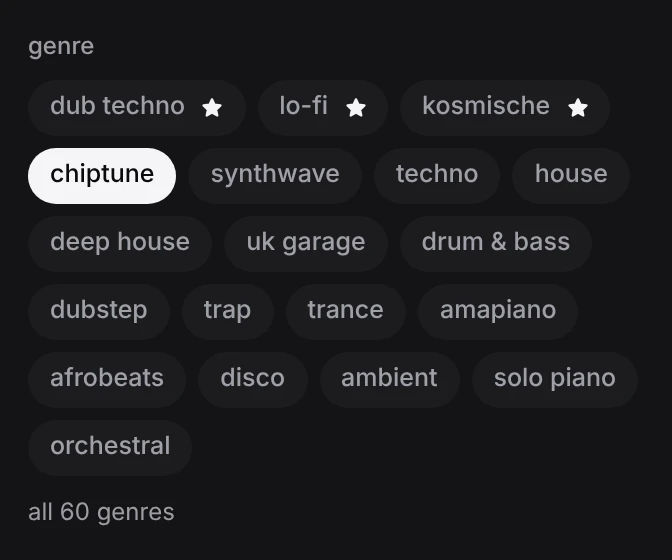
Favorites are stored in this browser, so a second browser or device starts without them, and clearing the site’s data removes them.
One genre is always selected, and the app opens on chiptune. To blend two, pick the closer one and describe the other in the prompt: the dub techno genre with “garage shuffle on the hats” in the prompt. Every genre, with its tempo range and default kit, is listed under genres.
#Loop or full
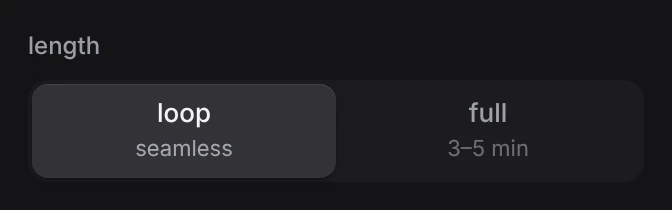
length decides what kind of track is written.
| loop | full | |
|---|---|---|
| what it is | a few bars that repeat without a seam | an arranged track with sections |
| how long | 8 bars unless you change it; 4, 8 or 16 | about 3 to 5 minutes |
| time to write | seconds | a minute or more |
| cost on your key | low | several times a loop |
| good for | sketches, beds, starting points, live editing | finished pieces, exports |
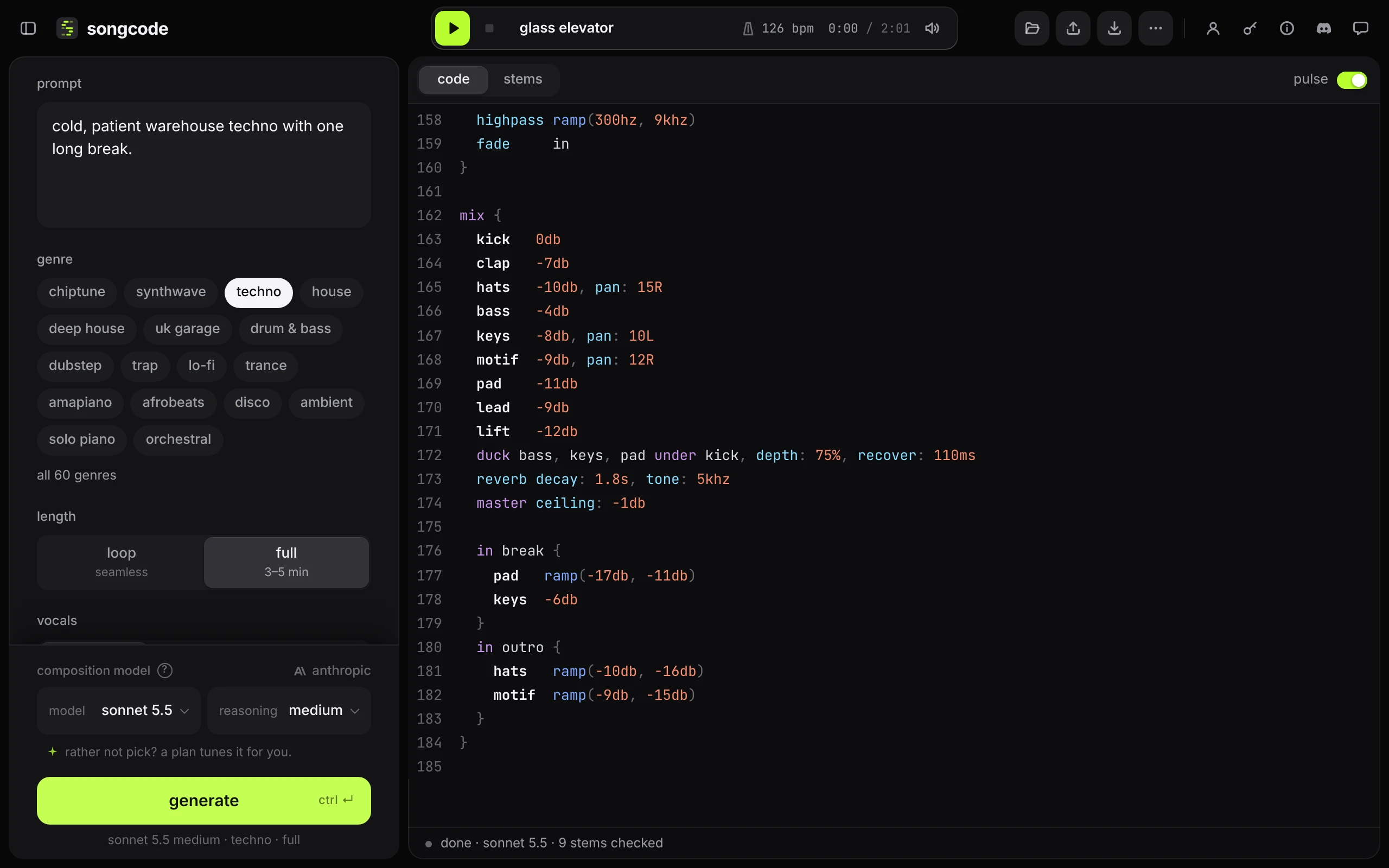
A loop has every part playing for the whole length. A full track names its sections (intro, build, main, break, outro) and says which parts play in each. The stems view shows those sections along the top of the timeline.
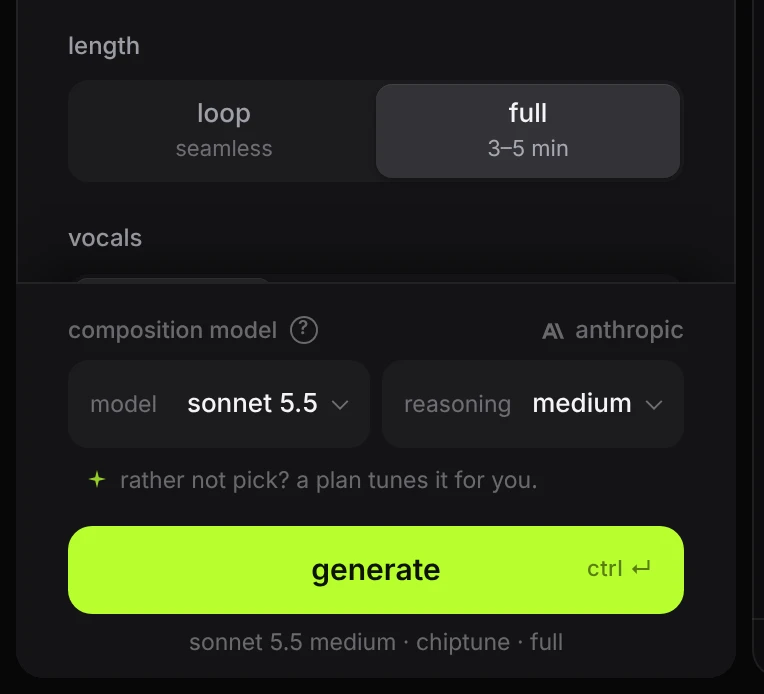
The loop’s length is under advanced, as loop length. The arrangement controls there apply to full tracks only.
#Vocals
vocals decides whether the track is sung.
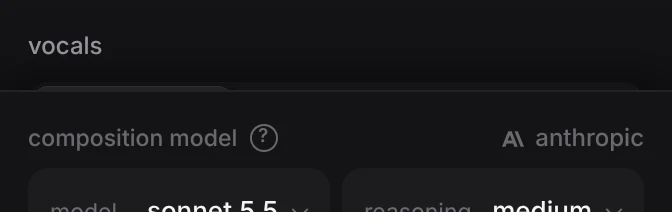
| what the model does | |
|---|---|
| auto | Writes a vocal only when the prompt asks for one. This is where the switch starts. |
| off | Writes an instrumental, whatever the prompt says. |
| on | Writes a vocal stem, with a melody and words. |
on opens two more fields.
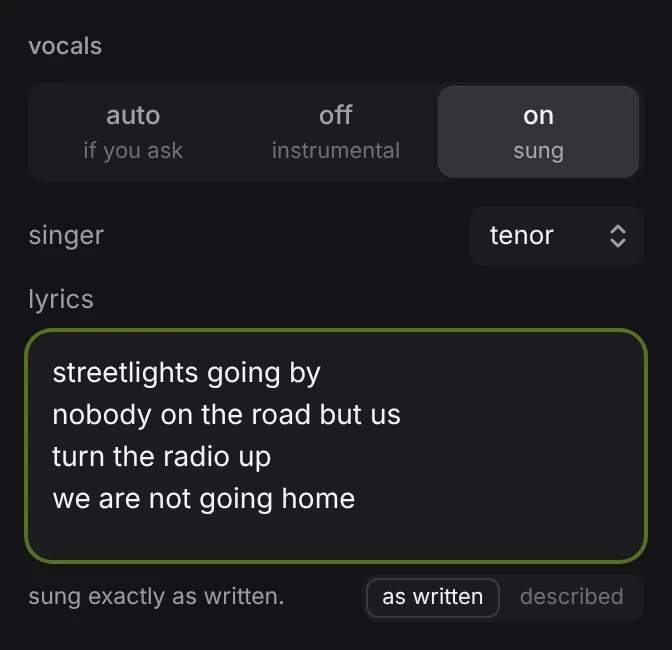
- singer picks the voice: soprano, alto, tenor, baritone, robot or whisper. Left on auto, the model picks the one that suits the track. Singers describes each.
- lyrics takes either the words to sing or a description of the words you want, up to 1,500 characters. Write lines, one sung line per line, and the model sets them as you wrote them and writes the melody to fit, one note to a syllable. Describe them instead (“a bittersweet verse about leaving town, a chorus that names the street”) and the model writes original lyrics that do what you asked. Leave the field empty and the model writes original words on the prompt’s theme.
The line under the box says how it reads what you typed: sung exactly as written or new lyrics from your description. It reads as you type, on your device. When it can’t tell, it says so and Songcode decides when it writes the track. If it reads you wrong, tap as written or described to set it yourself; tap it again to let the box read on its own.
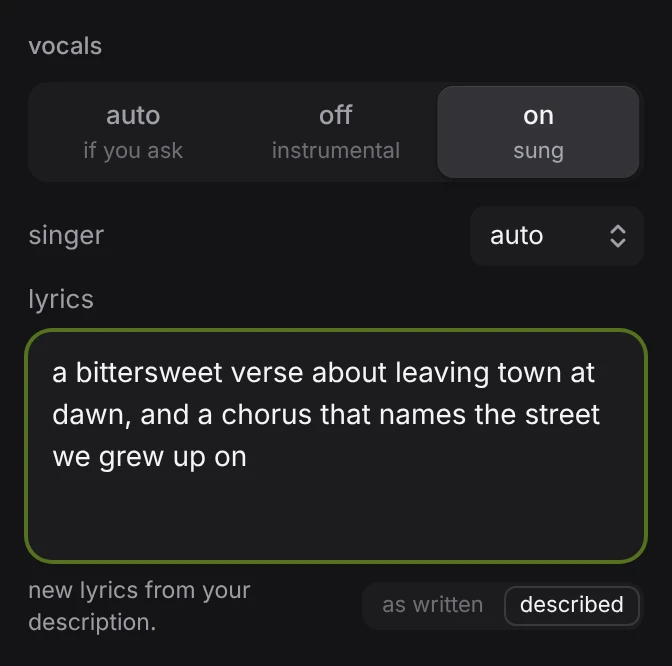
A loop holds only a few lines, so it sings the ones that fit, from the top. A full track plans its sections around every line you gave it.
The words end up in the code, in a lyrics block on the vocal stem, where you can change them afterwards. Lyrics covers how they are written.
#The model
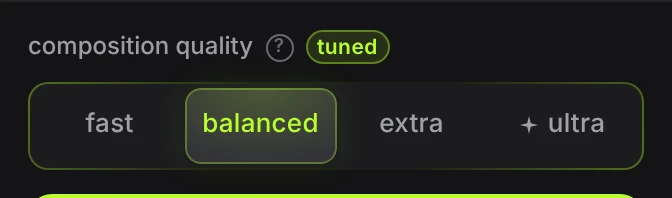
On a Songcode plan, fast, balanced and extra set how carefully Songcode writes the track, all with tuned composition. On your own key, model and reasoning pick the model and how long it thinks; API keys and models has the details. The row sits just above generate, and on a plan the week’s usage shows under the button.
#Ultra compose
On a plan, the fourth option, ultra, is ultra compose. Pick it and a burst of pixels flies out from it across the whole bar, the bar stays lit, and a line under it says what it costs. Pick any of the other three to turn it off again.
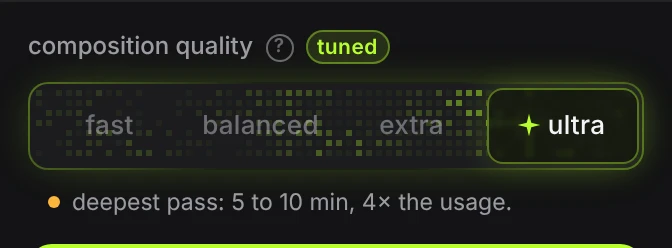
It gives the model as long as it wants to think the track through before it writes. In our own runs, four full tracks took between five and nine minutes each and used about four times what the same briefs used on extra. So:
- On a Songcode plan, a track made with ultra compose takes about four times the usage of the same track without it.
- On an Anthropic key there is no switch: pick Opus 5.5 and xhigh reasoning, and the bill for a track is about four times that of Opus 5.5 at medium.
- An OpenAI key has no equivalent.
It applies to a new loop or track. Fix passes, a new stem and a regenerated stem run as they always do. The switch turns itself off when you reload the page, so a long and costly run is always something you chose that time.
#Generate
Press generate or ⌘↵ (on Windows and Linux, ctrl and ↵).
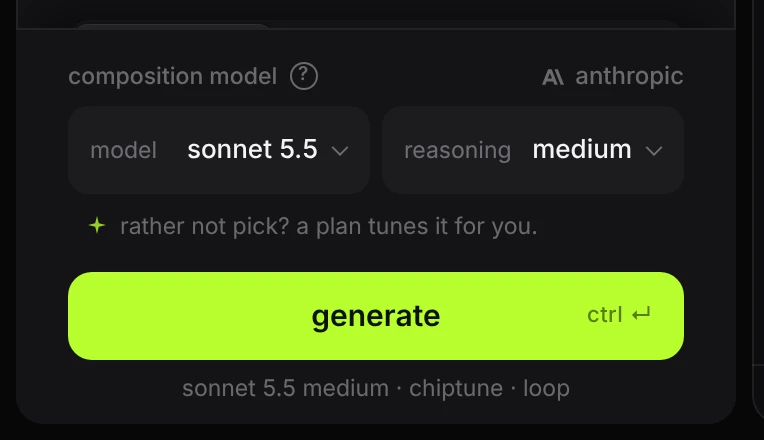
Generating replaces what is in the editor. The track that was there stays in the library as a draft, so nothing is lost.
In the stems view, the same button writes the track stem by stem, and the stems appear as tracks as they arrive.
You can switch between code and stems while a track is being written, as often as you like. Each view shows the same track arriving: the code as text, the stems as rows that fill in. Only a single stem being added or rewritten holds you in the stems view until it lands.
#What happens while it writes
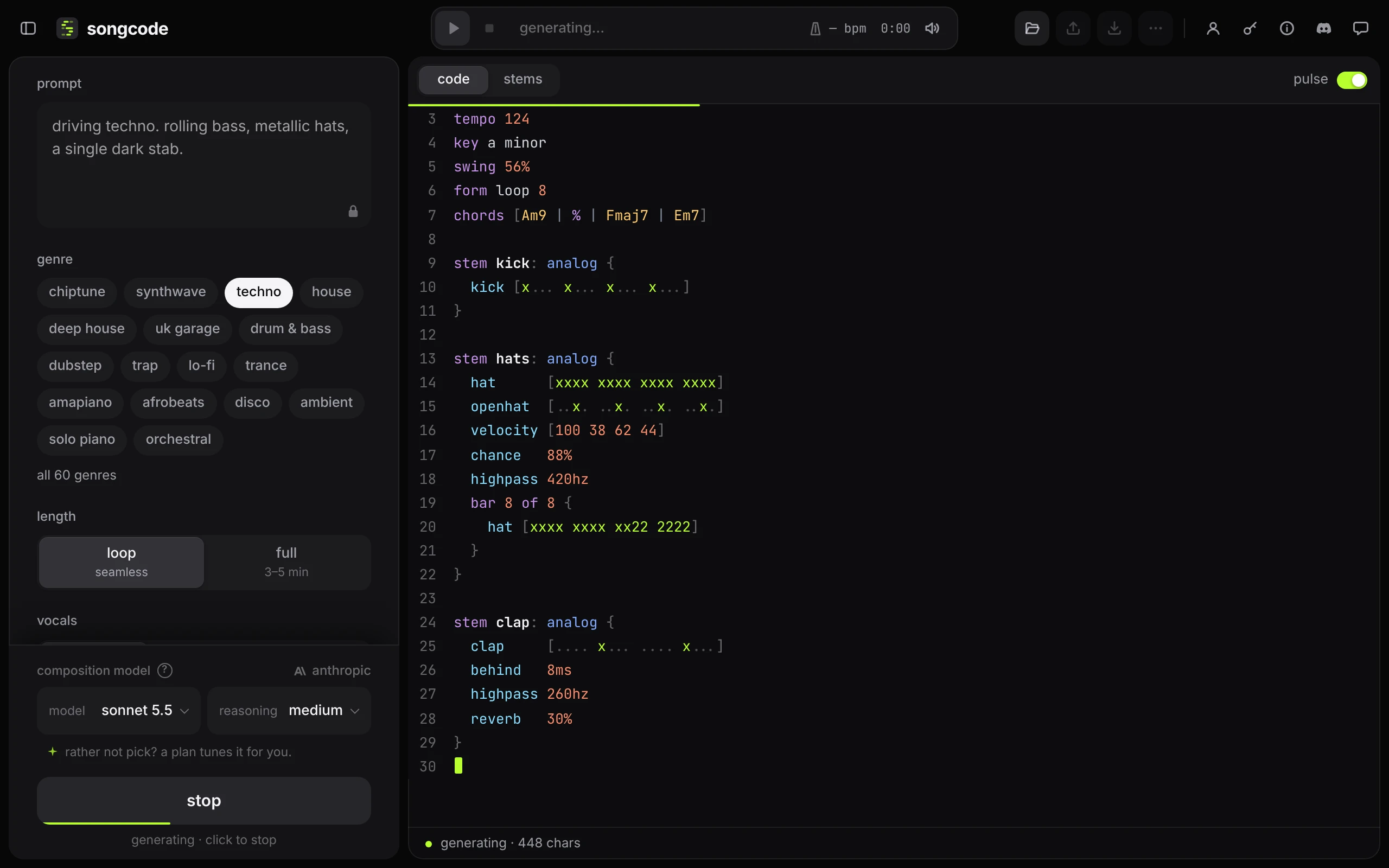
- The request goes out. The prompt, genre, length, model and any advanced settings you touched are sent with your key. The status line says
generating…. - The plan. A model works a track out before it writes the first line, which takes from a few seconds for a loop to a minute or two for a full track. On a Songcode plan or an Anthropic key you can read along in the code pane, and the status line says
planning…. Its notes on the key, the chords, the parts and the form are shown one thought at a time, as comment lines: a thought types itself out, rests for a moment, is taken back letter by letter, and the next one is typed in its place. When the model moves faster than that, the pane skips ahead to its newest thought. They are notes about the track, not part of it. The last one is taken back when the code starts, and none of them are saved. With reduced motion turned on in your system, each thought simply replaces the one before. - The code streams in. It appears as the model writes it, and the status line counts characters. The Songcode Audio Engine starts loading in the background so the first play is quick.
- The check. When the model finishes, Songcode runs the code once without sound. Every stem has to compile and produce notes.
- One repair, if needed. If the check finds problems, the status line says
fixing 2 problems…and the model is asked once to fix them, with the exact errors. Songcode keeps whichever version has fewer problems. This is a second request on your key, and usually a short one: the model sends back only the lines it changes. - Done. The status line reads
done, then the model, then how many stems were checked. The play button pulses once.

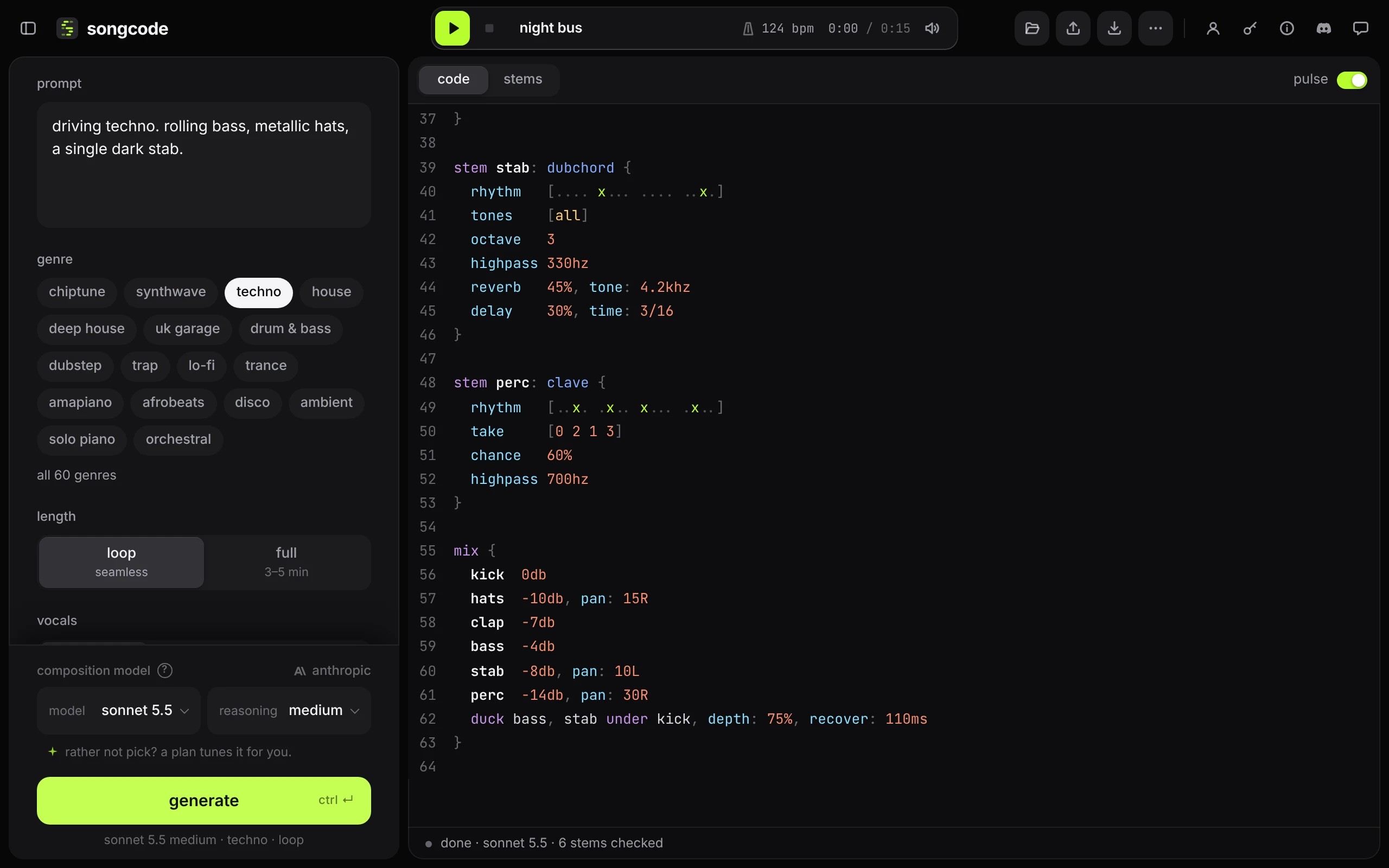
A full track arrives the same way and is longer. Its code has a form line near the top that lists the sections and their lengths.
#Stop
While a track is being written the button says stop. Pressing it, or ⌘↵ again, ends the request. What had arrived is kept and the status line says partial track kept. play it or generate again. Stems that were complete will play; the unfinished last stem will not.
#When the result is not right
- Generate again. The same prompt gives a different track each time.
- Change one thing. Add a sentence about the part you did not like, or switch the genre, and generate again.
- Fix it by hand. Edit the code, or open the stems view and regenerate, mute or redraw one stem while the rest stays.
- Pin what you liked. Advanced can hold the tempo, key, kit and more while the rest changes.
If the status line shows an error after generating, see troubleshooting.