Files and export
Save a track as a .songcode project or .ode code, open it again, and get it out as WAV, MP3, MIDI or separate stems. Everything happens in your browser.
A track lives in two kinds of file, and goes out as audio or MIDI. Everything is written on your device: nothing is uploaded, and a track does not need to be published first.
#The download menu
download in the top bar opens a menu with five formats and a duration.
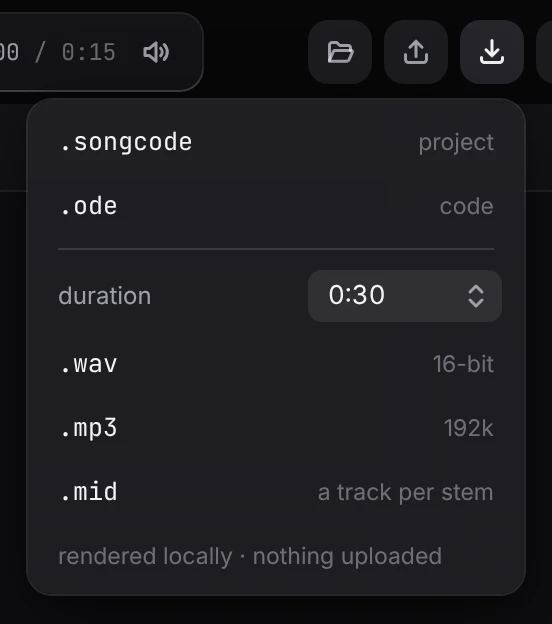
| item | what you get |
|---|---|
.songcode | a project: the track’s code and everything Songcode holds for it, so it opens back the way you left it |
.ode | the track’s code alone, as a text file, in ode |
.wav | uncompressed audio, 16-bit stereo |
.mp3 | compressed audio at 192 kbps |
.mid | the notes as a standard MIDI file, a track per stem |
The file is named after the track’s title.
#.songcode and .ode
A .songcode project holds the code, the title, the prompt, the style, loop or full, the model that wrote it, the tempo, the seed that fixes the track’s random choices, each stem’s role, which view it was in and when it was written. Opened again, it comes back in that view. It holds no mix of its own: level, pan and mute are in the code’s mix table. It is a JSON file, so it can be read in any text editor.
An .ode file is only the code, starting with the ode line that names the language it is written in. It is the file to read, edit in another editor, or keep in version control. Opened in Songcode, it plays as written, mix included, because the mix is part of the code.
A file whose code does not start with the line ode was made with an earlier version of Songcode and can no longer be opened. Songcode shows the text and says so in the status line. It does not play.
#Opening a file
The folder button in the top bar, or ⌘O, opens a .songcode or .ode file. You can also drop one anywhere on the page.
The file opens as a new draft in your library. Opening a file replaces the track on screen, which stays in the library as a draft. Opening needs an account; a visitor on a shared link is asked to sign in first, and the file opens once they have.
Audio and MIDI files cannot be opened. They come out of Songcode, not back in.
#Duration
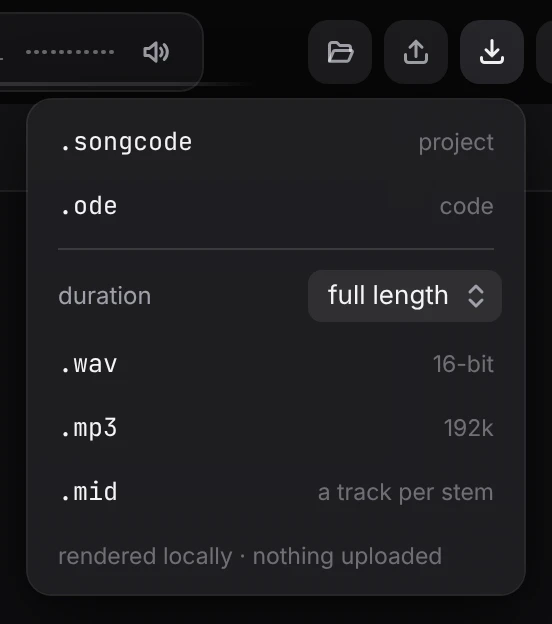
duration sets how much a WAV, MP3 or MIDI file holds: full length, 0:15, 0:30, 1:00, 2:00, 4:00.
- A loop has no natural end, so you pick a duration. It is rounded to whole passes of the loop, which means the file ends on the bar line and repeats cleanly if you loop it in other software. An 8 bar loop at 130 bpm is about 15 seconds, so
0:30gives two passes. - A full track defaults to full length: one pass from the first bar to the last. Pick a shorter duration to export only the opening.
#While it renders
The foot of the menu and the status line show progress, rendering 0:42 / 3:10, then writing wav… or encoding mp3…. When the download starts, the status line reports the format, the length and the file size.
A loop takes a few seconds. A full track can take a minute or more, and an MP3 a little longer than a WAV.
If you have mixed the track in the stems view, the export has that mix: each stem’s level, pan and mute.
#MIDI
.mid is read from the track’s notes, not rendered, so it takes a moment even for a full track. Each stem is its own MIDI track, named after the stem, at the track’s tempo and in its meter, so a 3/4 track is 3/4 in the file.
- Pitched stems (bass, chords, lead and the rest) each get their own channel, with every note’s pitch, start and length.
- A kit’s drums go on channel 10 as General MIDI drums:
kickis note 36,snare38,hat42,openhat46,clap39, and so on. The kit makes no difference; a kick from any kit is note 36. A drum that the code tunes with anotesrow is written as that drum, without its pitches. - Velocity is the track’s own, from 1 to 127. A note with no
velocitywritten is 100. - Sounds with no pitch that are not drums, such as noise or a field recording, have no note to write and are left out.
The mix does not apply: a muted stem is still in the file. Sound design (filters, effects, the synth or sample) stays in Songcode; the MIDI file carries the notes for your own instruments.
#Stems and mix, from the stems view
The song menu in the stems view, … at the right of the song bar, has two more exports.
- download stems (.wav) renders each stem by itself to its own WAV, named with the track’s title and the stem’s name. The files all start at bar 1 and have the same length, so they line up when you drop them into other software. Your browser may ask once whether the site may download several files.
- download mix (.wav) renders the whole track to one WAV.
Both cover one full pass of the song: the loop once, or the full track from start to end.
#Copy code
… next to download has copy code.
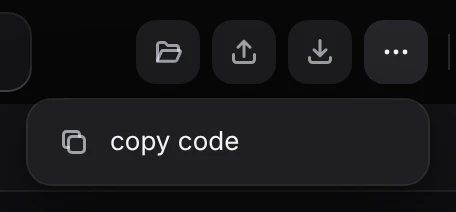
It puts the track’s code on the clipboard, exactly as it is in the editor. The code is ode.